Saillogger writes your logbook for you. This page covers what comes afterwards: reading a trip, giving it a useful name, correcting records affected by a bad GPS position, organising moorages, keeping the boat's maintenance records and downloading copies of your data.
If the automatic trip and moorage behaviour is unfamiliar, How trips are logged explains it before you begin editing records.
Browsing your logbook
Your logbook is at saillogger.com/app/logbook, and it is the Logbook tab on a phone.
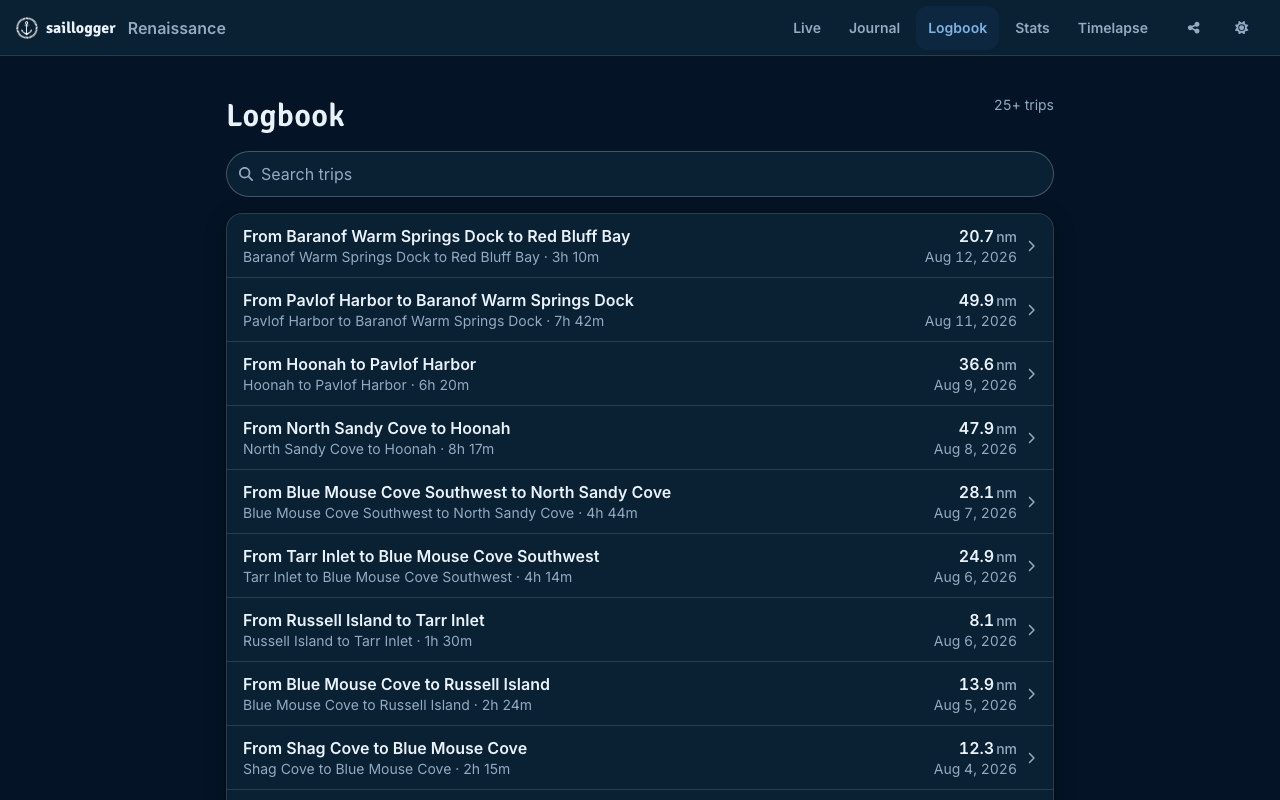
One row per trip, newest first. Each row carries the trip name, the route beneath it as from to to with the time under way, and the distance and date on the right. Beside the heading is a count of what you are looking at, such as 25+ trips, and Load older trips at the foot of the list fetches the next batch.
Search trips, above the list, matches the trip name and both moorage names, so typing a place name finds every trip that touched it. Three letters is enough.
Reading a trip
Tap any row. A trip opens as a page you read from the top down: the chart with your track on it, then the passage, then the figures, then your own words.
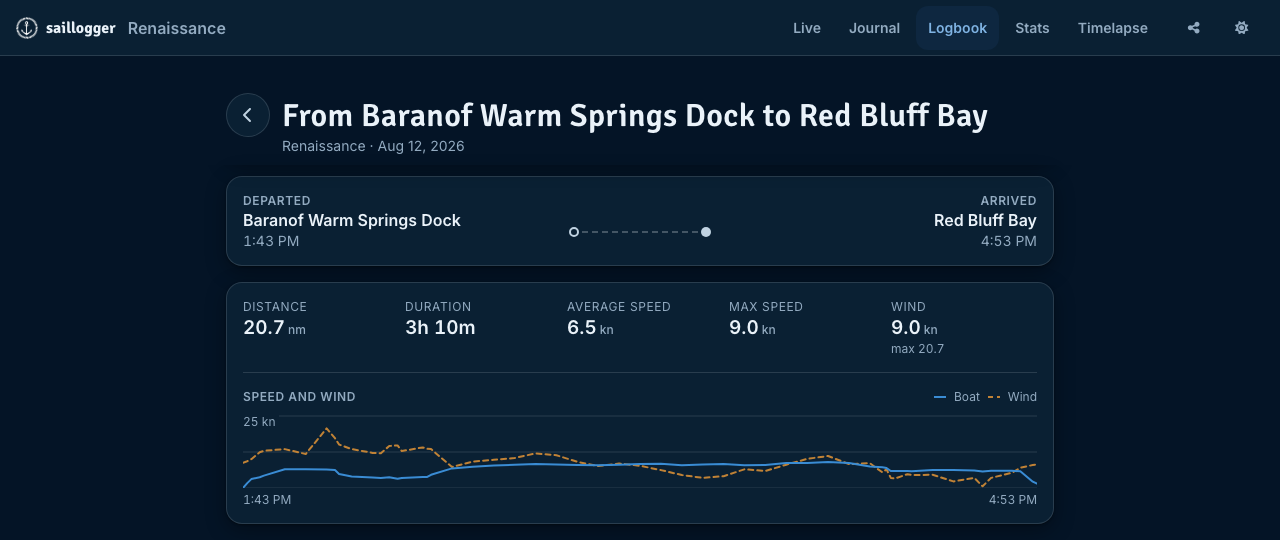
| On the page | What it shows |
|---|---|
| The title | The trip name, with your boat and the date beneath it. Tap it to rename, see below |
| Departed and Arrived | The moorage at each end and the local time. Tap either to open that place. A passage still in progress reads Under way on the arrival side, with the time you left, until Saillogger closes it |
| The figures | Distance, Duration, Average speed, Max speed and Wind, with the strongest wind of the passage under it |
| Speed and wind | Your boat speed and the wind, drawn against each other for the whole passage |
| Sailing vs motoring | Hours and percentage of each. Sailboats with engine data only |
| Engine hours | Hours run this trip, with the meter reading at each end. Port and Starboard separately on a twin-engine boat |
| Conditions | The lowest, average and highest reading of everything else you monitor, for this trip. Shown only to you |
| Notes | Your account of the trip, see below |
A row appears when Saillogger has something to put in it, so two trips can look quite different.
Conditions includes your own monitoring sections: if you have built sections for your tanks, batteries or engine, each trip carries their range. See Make Saillogger yours for how to add them.
These additional readings are also visible only to you in the map popups in Classic view.
Two actions sit in the heading: Share, covered in Share your journey, and Classic view, which opens the older trip page where you can correct positions and delete the trip. Two more sit over the chart itself: Timelapse, which replays this passage, and a button that fills the screen with the chart and brings you back out.
Renaming a trip
Automatic names use the detected place names, which may differ from the names you use aboard. Rename a trip whenever a more familiar title would make the logbook clearer.
- Open the trip and tap its title.
- Type the name you want.
- Press Enter, or tap away.
To go back, clear the title the same way. An empty name brings the automatic From X to Y name back.
Jumping to a moorage from a trip
The Departed and Arrived blocks open that place, where you can rename it, set its usual stay type, mark it a home port or write notes about it. That is the fastest way to fix a place shown as Unknown: correct it once, and every trip and stay that uses it reads correctly from then on.
Renaming a moorage does not rewrite trips you have already named. If a trip still carries an old automatic name, clear its title as above and the current place names are used.
Writing notes on a trip
The Notes card at the bottom of a trip is where you write what happened. Write about this trip opens it when it is empty, Edit when there is already something there, and Save stores it. Nothing saves on its own.
Notes attached to individual positions are separate from the trip note and also appear in the journal and timelapse. They are covered below and in Notes, photos and your journal.
Deleting one bad position
A single incorrect GPS position can add distance to a trip and distort its maximum speed. You can delete that position without removing the rest of the trip. This is done on the trip's Classic view, which is where the track's individual positions can be opened.
- Open the trip and choose Classic view.
- Click the boat marker at the bad position. A popup opens with the time, boat speed, wind speed and position.
- Click the red trash button in the popup, and confirm. The point is deleted.
Saillogger then recalculates the trip's distance, average and maximum speed, maximum wind, and start and end times from the remaining positions.
Use this for a handful of spikes. If incorrect positions affect most of the track, removing individual points is unlikely to recover it. Export anything useful, then consider deleting the trip.
Adding a note to a position
The same popup has a Notes box. Click a marker anywhere along the track, write your note, save it.
This lets you add a position note retrospectively. Position notes appear in the timelapse and journal at the point on the track where you place them.
Deleting a whole trip
Deleting a trip is also on its Classic view: the red trash button at the bottom of the panel.
It warns you first: "This will permanently delete the Log Entry and any associated Stays."
Delete a false dock trip when you no longer need it. For a real trip with only a few bad positions, remove those positions instead so you can keep the rest of the record.
Moorages
A moorage is a place your trips start and end. Saillogger creates one for a detected place and reuses it on later visits. A name you give it, or a usual stay type, also applies to those later visits.
Your places are at saillogger.com/app/moorages: a chart at the top and the same places listed beneath it. Search places and notes finds one by name or by something you wrote about it, All and Home ports narrow the list, and the sort beside them offers Most stayed, Recently stayed or Name.
Two chart buttons sit together at the top left, in both the small chart and the full-screen one:
- Full screen, to fill the window with the chart and come back out.
- Center on my location, which finds where you are and frames you with your nearest saved places. It answers "which of my places am I near", so it does not zoom all the way in. Tap it again to clear the marker and return.
The second button appears only if your device can share its position, and the first time you use it your browser or phone asks permission. Denying it is remembered by the device, not by Saillogger, so turning it back on is done in your device settings.
Tap a place, on the chart or in the list, and a panel opens with everything about it:
| Control | What it does |
|---|---|
| The name at the top | What you call this place. Used wherever the moorage is shown, and on every future visit |
| Usual stay type | The type new stays here get, so you classify a place once rather than per visit |
| Home port | Marks this as a home port. Home ports are set on the place, not in Settings |
| Total stay | How long you have spent here in all, and how many visits that was. Tap it for those stays |
| Arrivals & departures | How many times you have come and gone, and how many trips that was. Tap it for those trips |
| Moorage notes | Anything you want to remember about the place: holding, the approach, the ferry wake |
Renaming a place does not automatically retitle trips that already exist. Rename any existing trip titles you want to update, as described above.
Names you choose for your moorages. Renaming a moorage changes it in your logbook and leaves the moorages in other logbooks unchanged. New moorages in other logbooks take a name you chose only when several boats have each renamed their moorage at the same place to that same name. A rename never counts if the name looks personal, such as one containing your own name, your boat's name, an address, or the word "my", "home" or "family".
This also applies to nearby boats on opposite sides of the 180° meridian. Saillogger rechecks this agreement as the catalog updates and preserves reviewed corrections. If the agreement no longer holds and the name has not been confirmed in a review, Saillogger looks for another name for new moorages and leaves the withdrawn name out of shared lookup history. Undoing a reviewed correction also respects the latest agreement. Names already in your logbook stay as they are.
Nearby stops can share a moorage, so one harbour may not split into separate anchorage and marina records. Label each visit with its own stay type to preserve that distinction.
Stays
A stay is your visit between arriving and leaving again. Your stays are at saillogger.com/app/stays, every visit night by night, newest first.
Each row carries the place, the dates you arrived and left, how long you were there and how you stayed.
Four chips above the list narrow it: All, Away, Home ports, and Type, which opens a picker holding the built-in types and your own. Whenever a filter is on, a line beneath the chips totals what you are looking at, such as 34 days · 12 stays, which is how you answer "how many nights did we spend at anchor".
Two more chips appear when you arrive here from somewhere else, and each carries a cross to clear it: a place, when you came from a moorage's Total stay, and a date range, when you came from a Nights row on your statistics. Those are the way to look at one place or one season: tap the figure where it is shown, and this list opens already narrowed to it.
Tap a stay to open it. Inside are its name, Arrived, Departed, the Moorage it belongs to, Stayed at, Max wind during stay when wind was recorded while you were there, and Stay notes for how the holding was, the swell, the town.
Stayed at is the type of the visit. Four are built in:
- Unknown
- Anchor
- Mooring Buoy
- Dock
If you have made your own stay types (Yacht Club, Guest Dock, Raft-Up, Haulout, whatever you need) they appear alongside those. Creating them is covered in Make Saillogger yours.
This is the answer to the one-moorage-per-harbour limit. Three visits to the same place can read anchor, mooring buoy and dock.
There is no separate delete button for a stay. A stay is associated with the trips on either side and is removed if a bounding trip or its moorage is deleted.
Maintenance records
Maintenance, at saillogger.com/app/maintenance, keeps the boat's service history, one record per job: the date, what was done, a category of your own, where it was done, who did the work, the engine and generator hours at the time, the parts used and your notes. On a phone it is under More, in the Boat group. Add log starts a record, and selecting a record opens it with Edit and Delete.
Printing the maintenance log
Print, at the top of the Maintenance page, opens the log as a document to print or to save as a PDF, for a mechanic, a surveyor, an insurer, a buyer, a hired skipper or your crew. If you have selected a category on the Maintenance page, the document opens with that category selected. On some phones the button is a printer icon.
Above the document you choose what it includes:
- All categories or one category, and All years or one year.
- Notes: the notes on each record. Untick Notes to print the log without notes, for example when they include prices or remarks meant only for you.
- Contact details of who did the work: a closing section, Who did the work, with the phone number, e-mail, website and address of each business or person named under Performed by, where Saillogger has them.
- A page for entries by hand: one extra page at the end where someone aboard can write each job when it is done, with a box the owner marks once an entry has been added to Saillogger. To print more copies of that page alone, choose its page number in the print options.
Changes made with a mouse or a tap apply immediately. If you change an option with the keyboard, select Update to apply it. Opening your browser's print preview before the changes have loaded shows a reminder in place of the log. Close the preview, select Update if it is shown, and wait for the updated document before printing again.
Then select Print. To send the log by e-mail or in a message, save it as a PDF from the print options:
- On a computer, choose Save as PDF as the printer (in Firefox, Save to PDF). In Safari on a Mac, choose Save as PDF from the PDF menu in the print options.
- On an iPhone or iPad, select Print, then the share button at the top of the print options, then Save to Files, Mail or another app.
- On an Android phone, choose Save as PDF as the printer, at the top of the print options.
The document says what it includes. A printout of one category or one year says so at the top, for example Engine records only: 8 of the 16 records in Saillogger, and so does its last line. A printout without notes says that too. Every printout also says that the records were entered by the boat's owner or crew, and that Saillogger does not verify the records. Part prices and quantities, and the notes you keep on parts and vendors, are never printed.
On a computer, Chrome and Edge number the pages and repeat the boat's name at the bottom of each page. In Safari and Firefox, turn on headers and footers in the print options to number the pages.
Exporting
Four exports, and they are specific data exports rather than a complete account archive: photos and journal media are not included. Your running totals across these trips are in Statistics and badges.
| Where | Button | You get |
|---|---|---|
| Stays | Export | A CSV of every stay |
| Moorages | Export GPX | A GPX of every moorage, as waypoints |
| saillogger.com/logs/export/ | opens and downloads | A CSV of every trip |
| saillogger.com/timelapse/export/ | Export | A GPX of your tracks |
All three exports are one press and a download, and you can bookmark them directly at https://saillogger.com/logs/export/, https://saillogger.com/stays/export/ and https://saillogger.com/moorages/export/.
The track export is the one with choices on it. The page is headed Export Tracks and offers:
- Choose Trips, a switch. Leave it off for everything; turn it on to pick a Start Trip and an End Trip and export that range.
- Granularity, which sets how far apart exported positions have to be. Coarser means a much smaller file.
Normal is preselected. Choose a finer option for a more detailed track or a coarser option for a smaller file.
Importing
Imports are done by the Saillogger team rather than from your own settings, and they are often possible.
GPX tracks, PredictWind history, or a Victron VRM log export can often be imported. On a Victron GX, the export is the CSV download on the VRM Portal's Advanced page, covering the dates you want recovered. Imported passages can be placed before your first trip on Saillogger or in a gap between two trips. An import never replaces a trip your boat recorded.
If you have a passage you would like recovered, write to [email protected] with the file and the dates it covers. For a GPX file, include the track from departure to arrival, with a time for each position. You can include positions recorded while the boat was stopped. We will check it and tell you whether an import is possible before making any change to your logbook.
Our review also checks whether a GPX passage ends too close to an existing trip. If this prevents the import, your logbook stays unchanged.
A passage made while the system was off left no tracking data. If you have reconstructed the route of such a passage as a GPX track, for example from your planned waypoints and the dates and times you noted, it can sometimes be added too. The passage then has a note saying that it was reconstructed and that its route and times are approximate. You can edit or delete that note like any other.