Saillogger records where you went on its own. The notes and photos are the part only you can add. Everything you write is pinned to the position you wrote it at, so it comes back on the map, in the trip, in the journal and in a timelapse.
Three ways to write a note
- The Journal chip on your dashboard. This is the one to use at sea: type into Add to your journal…, press Post, and the note is placed at the boat's current position and time.
- The Journal page, which is the same writing surface with room to read. Open an entry's pencil to edit what you wrote, or to add to a stay.
- A position marker in a finished trip. Open the trip, choose Classic view, click one of the little boat icons along the track and type into the Notes box in the popup. This is how you add a note after the event, at exactly the right place.
You can use them in any order. Many boaters write a line or two under way and fill in the details at anchor that evening.
Where a note ends up
You write it once and it appears in four places:
- on your dashboard, as a mark on the track, which anyone following you can open
- in the finished trip, on the position it belongs to
- in the journal, both the panel and the page
- as a caption in a timelapse, as the boat reaches that point
Editing the note updates it everywhere Saillogger displays that entry.
A note about a place belongs to that visit
Notes and photos you attach to a stop belong to that stay, not to the place itself. Come back to the same anchorage next year and you start with a clean entry: last year's note stays with last year's visit and does not appear on the new one.
Adding photos
Two ways:
- The camera beside the composer, in the journal panel or on the journal page, for a photo of where you are right now. It needs no text with it.
- The camera on any entry, to add a photo to a note you have already written.
Accepted files: .jpg, .jpeg, .png, .gif, .heic and .heif, up to 20 MB each. HEIC and HEIF are what an iPhone produces by default, so you do not have to convert anything.
If a photo is too big, Saillogger says: Photos must be 20 MB or smaller. Resize it, or send a smaller version from your phone's share sheet.
If a photo will not upload
- "Photos must be 20 MB or smaller." The file is too big. Most phones offer a smaller size when you share a photo; use that.
- The file is not accepted and the upload does not start. Only
.jpg,.jpeg,.png,.gif,.heicand.heifare supported; videos and PDFs cannot be uploaded here. - "This photo is too large for us to open." The picture contains more detail than Saillogger can safely process, even when the file itself is under 20 MB. Save or share a smaller copy as a JPG and upload that one.
- "This photo could not be read." The file is damaged or arrived incomplete, which happens when a copy or a download was interrupted partway. Uploading the same file again gives the same result, so use the original, or another photo.
- The upload never finishes. Check the connection, reload the page, sign in if prompted and try once more. If the same supported file still fails, contact us with its format and approximate size.
The journal panel
The Journal chip on your boat card opens the panel beside the chart. It lists this cruise's entries, newest first. Each entry carries an anchor icon if it is a stay and a boat icon if it is a passage, the place, how long ago it was, the text and any photos.
Every entry you own carries three small buttons: a camera to add a photo to that entry, a pencil to edit the text, and a pin, Show on the chart, which flies the chart to where it was written and opens its mark. That last one is the quickest way to answer "where were we when we saw that".
The pencil opens a box with Save, Cancel and Delete, so an entry you no longer want can go entirely; Delete asks once before it does. Each photo has a bin over it to remove it on its own.
The panel is the writing surface next to the boat. For reading and sharing there is a full page, and the same notes and photos appear in both.
Your journal
The journal is the same collection of entries as a page of its own: saillogger.com/app/journal, and Journal in the navigation.
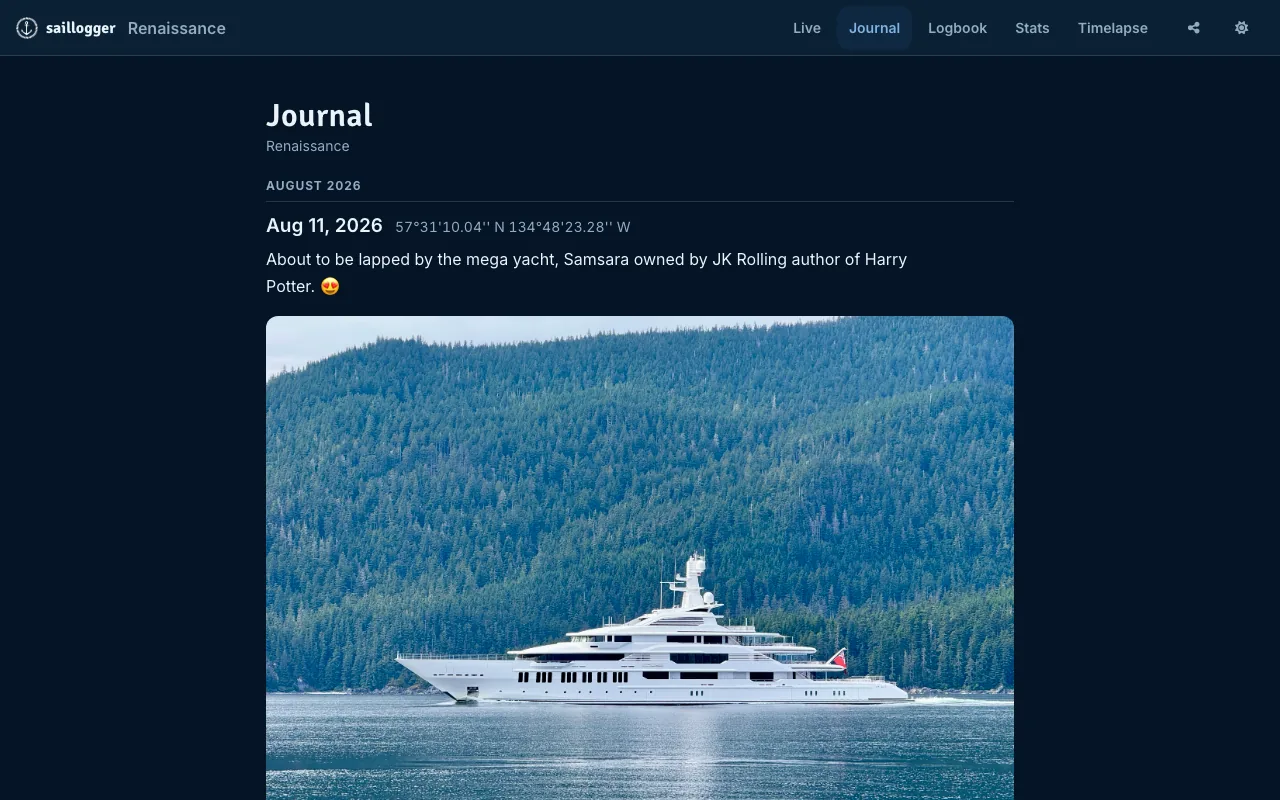
Each entry shows an anchor icon for a stay or a boat icon for a passage, the place, the date, the position it was written at, your text and your photos. Entries are grouped by month, so a long cruise reads in order without you counting dates.
The composer sits at the top of the page, exactly as it does in the panel, and it writes at wherever the boat is now. You do not have to be under way to use it.
Two actions sit beside the heading: Share and Print.
Sharing the journal
Share uses the public address of your journal, https://saillogger.com/<your-boat>/journal, rather than the private address you are viewing. Visitors do not need a Saillogger account, but they must enter your access password if you set one.
The journal has no sharing switch of its own. It is published by the same switch as your live page: Live tracking & monitoring in the Sharing settings. If that is off, there is nothing public to share, and Share says so and offers Go to Sharing settings rather than sending a link that would not open.
Printing the journal
Print opens the journal's printable page in a new tab, at saillogger.com/monitor/journal/, with the navigation and the on-screen controls stripped out. Print from there, in a desktop browser in landscape for the best result. Printing to PDF works the same way and is a convenient way to keep a season.
This page was previously called the printable logbook; older links to it, /monitor/logbook/ among them, still open the journal.
A blank journal
If your journal shows its heading and nothing else, first check whether Show my cruise from is set.
This setting controls which trips appear; changing it does not delete notes or photos. Without a starting log, the journal, its panel and the track behind the boat have no selected range to display. Watch your boat live has the steps.
Saillogger normally sets this for you after your first trip, so a blank journal usually means a new account, or one where the setting was cleared.
If it still looks empty
- The starting log is set to a recent trip: choose an older one. Only trips at or after it are collected.
- You have logged no trips yet: notes need a track to attach to.
- You are looking at someone else's public journal: it shows only what its owner has written.
Notes show up in your timelapse
A note attached to a position becomes a caption in a timelapse as the boat reaches that point. Writing one under way places it at the current position; you can also add it retrospectively from a finished trip.
Notes stay attached to their positions and appear as captions in every timelapse that includes them. See Timelapse.